For Photographers
Wedding Gallery Delivery: Send to the Couple and Every Vendor in One Click
How wedding photographers deliver a client gallery to the couple, the planner and every vendor in one send, using the contacts already saved in their CRM. Settings, what clients see, and what happens after.
Colara · October 23, 2026
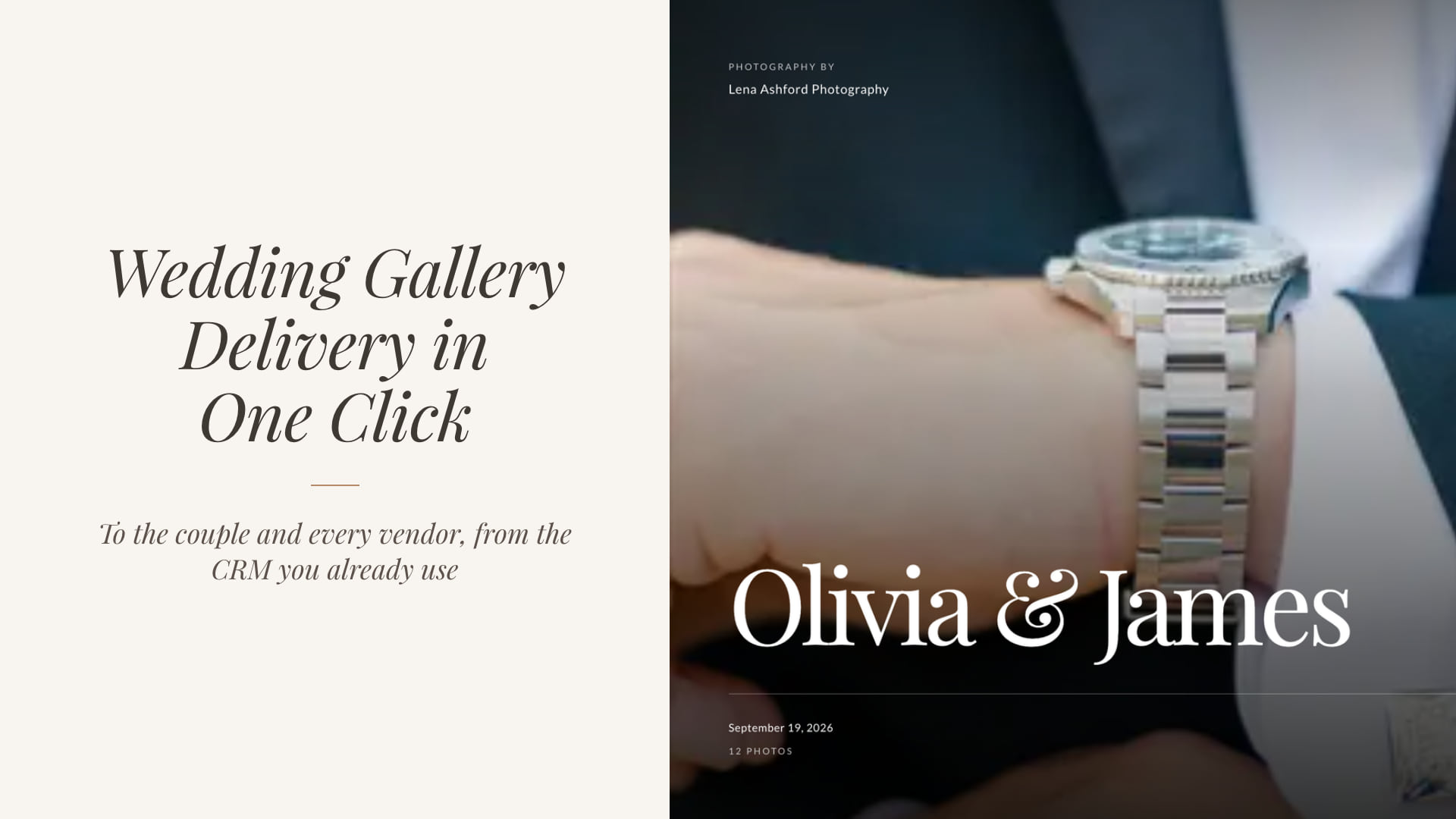
Wedding gallery delivery is the moment the finished photographs reach the people who were there. The couple first. Then the planner, the florist, the venue and the band, who all want the day on their own websites with your credit on it.
Most photographers deliver well to the couple and badly to everyone else. Every extra recipient means another email, another copied link, another address dug out of a contract. This guide shows how delivery works when the gallery lives in the same workspace as the wedding, so one send reaches everyone.
In short
- One audience, not a list of addresses. The couple, the planner and every vendor are already saved on the wedding.
- Set the rules once. Password, download PIN, download policy and closing date live on the gallery, not on each recipient.
- Preview before anything goes out. Everyone gets the same email with their own first name filled in.
- See what happened after. Who was sent it, who opened it, what they hearted and downloaded.
Why vendor delivery slips
The usual setup is two tabs. A gallery tool on one, your CRM or inbox on the other. The gallery tool knows one email address. Your CRM knows twelve.
So the vendor sends wait. They are the first thing dropped on a busy week, and they matter more than they look. Vendor galleries are how your work lands on a venue's Instagram and a planner's portfolio page, and that is where the next inquiry comes from.
If you have not read it yet, how to get wedding photography clients covers why vendor relationships outperform ads.
When the couple, the planner and every vendor are already on the wedding, delivery stops being a list of addresses and becomes a choice of audience.
How one-click delivery works
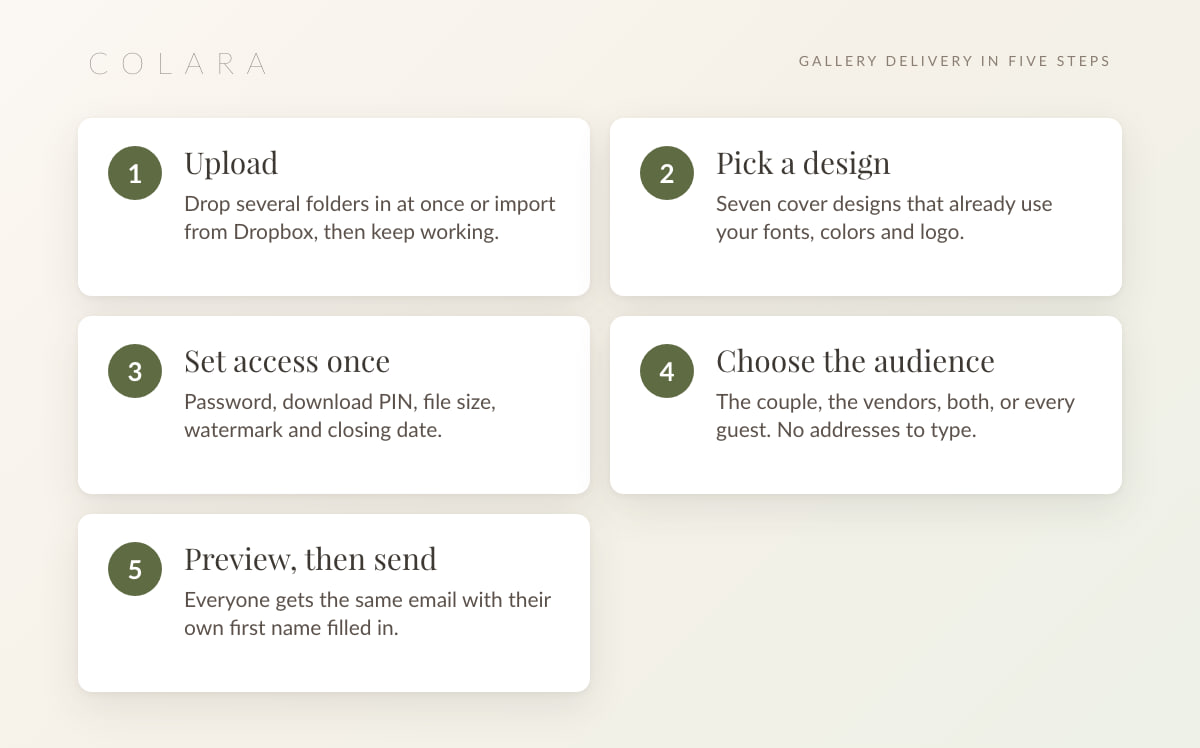
In Colara, a delivery gallery belongs to a wedding, and the wedding already holds the couple, their planner and the vendor list. Five steps, start to finish.
1. Upload the finished photographs
Drop several folders in at once (Ceremony, Portraits, Reception) and keep working while they upload in the background, or import a Dropbox folder directly. HEIC files convert automatically. The gallery waits until every photograph has a web preview before it goes live, so nobody opens a half-finished page.
2. Pick a cover
Seven cover designs (Editorial, Minimal, Split, Film, Masthead, Arch and Frame) take their colors from your brand settings and carry your studio credit. Gallery presets save your defaults, so the next wedding starts dressed.
3. Set access once
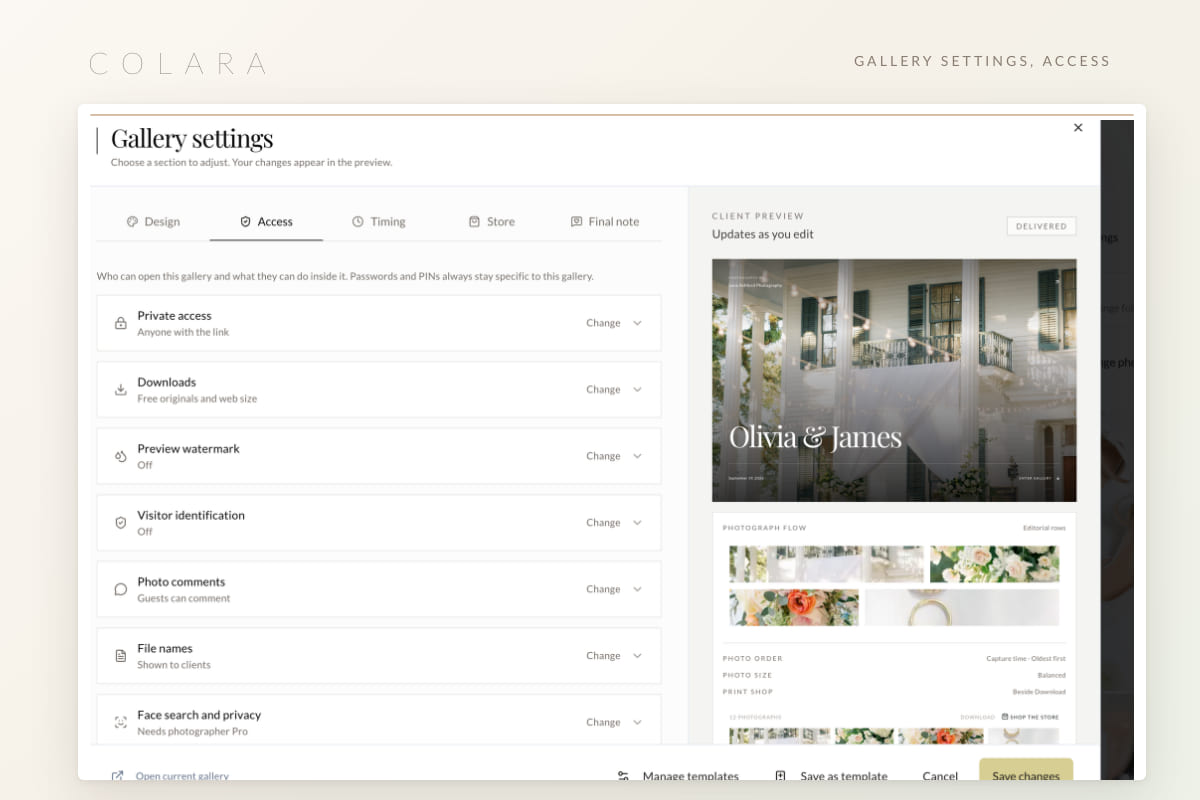
Everything lives on the gallery, not on the recipient. An optional password, a separate download PIN, web size or originals, a watermark on public previews that stays off the originals, and a closing date with reminders.
4. Choose the audience
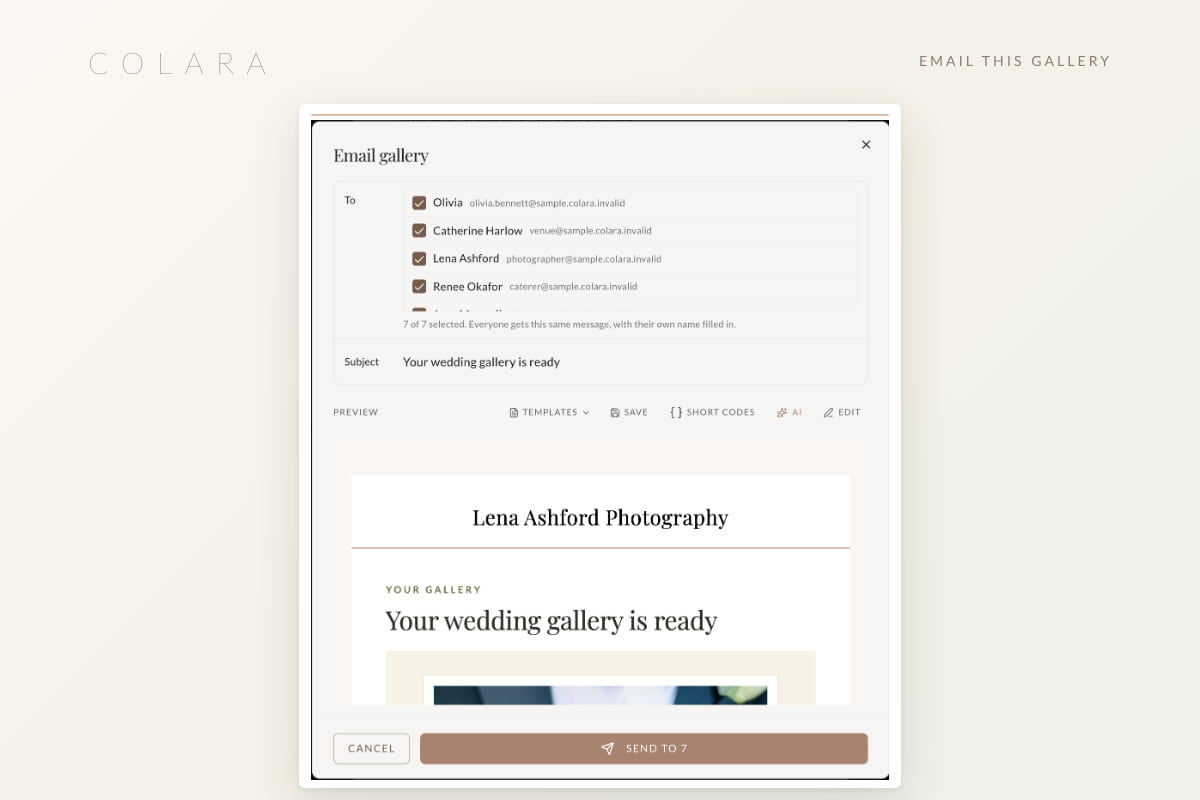
Click Email gallery and pick who receives it: the couple, the wedding vendors, both together, all wedding guests, a hand-picked set of saved recipients, or typed addresses for anyone not yet in the system. The dialog shows the count as you choose and names the wedding it is pulling from.
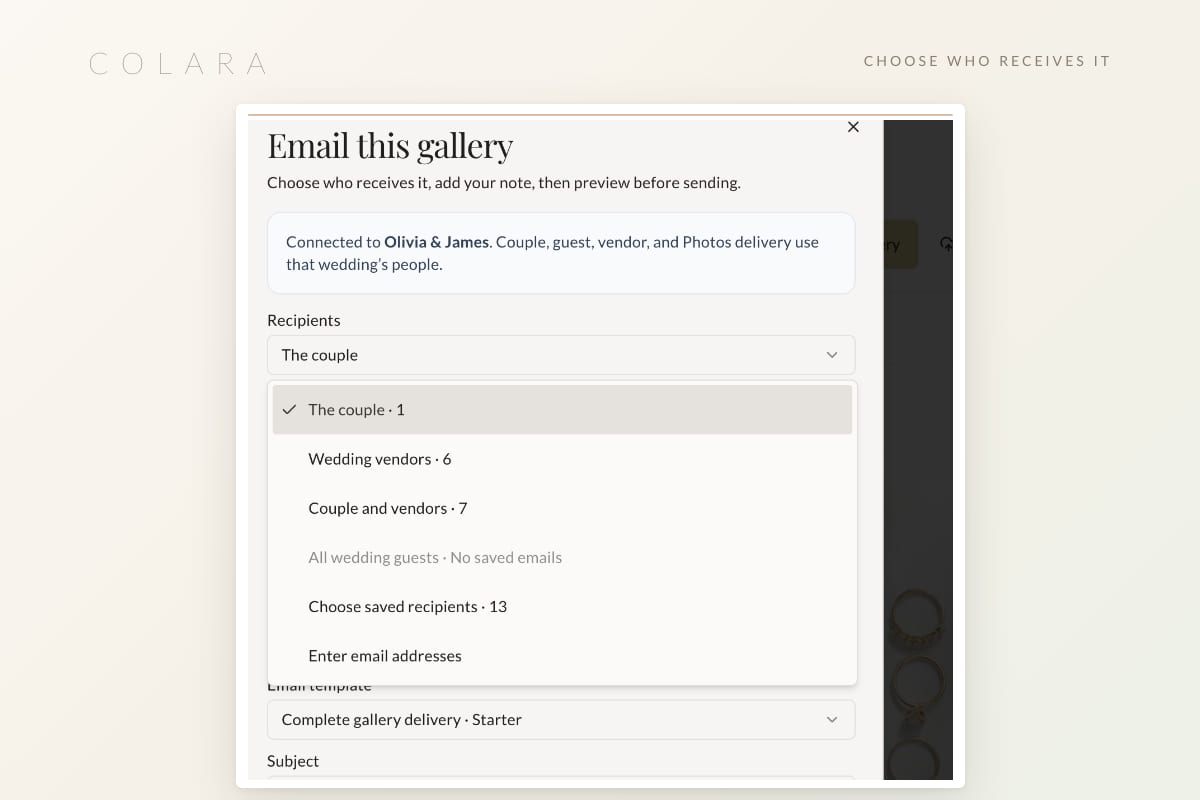
5. Preview, then send
The email is built from your template with the gallery cover and your signature. Everyone gets the same message with their own first name filled in. Read it, edit the wording if you like, and send to everyone at once.
Three things happen quietly. Delivering can add the gallery to the couple's planning workspace, next to their timeline and vendor list. Re-delivering later refreshes the same gallery card instead of creating a duplicate. And for sends that are not email, the link, a QR sign for the reception and a single credited photograph are always a click away.
See it on a real wedding. The photographer demo opens with a finished gallery ready to send.
Open the demoWhat the couple sees
A full-screen cover with their names and the date, then folders in the order you set.
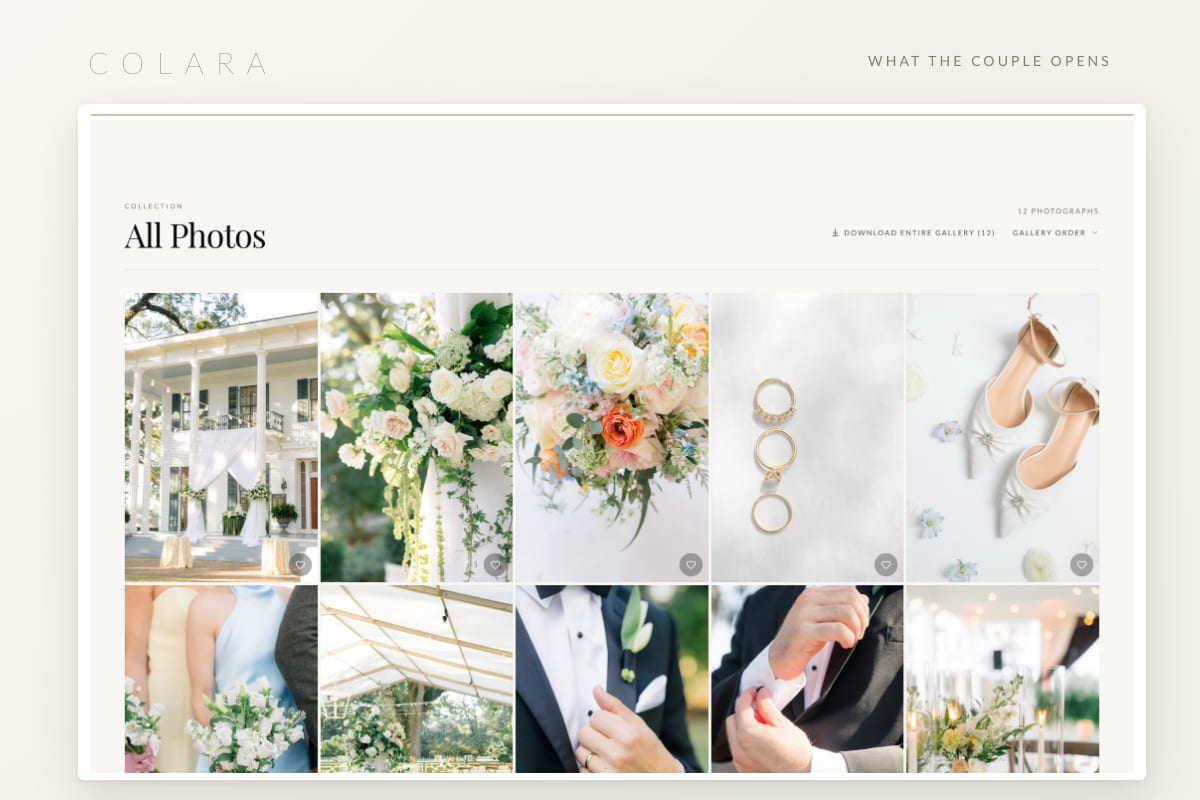
- Favorites. Up to eight named lists (Parents, Album, Prints), each sent to you with one click.
- Downloads. Whatever your policy allows, as single photographs or a ZIP that keeps your file names and gallery order.
- Ways to look. By time taken, as a slideshow, zoomed in on a phone, or through private face search where you have turned it on.
- Comments and the store. Comments on photographs if you enable them, and prints or an album if your store is open. More in selling prints and albums from your gallery.
Favorites pay off twice. When the couple sends you an Album list, click Copy file names and paste the result into Lightroom's filename filter. That is the starting point for the album first draft.
What the vendors and the planner see
The same gallery, with your credit on every photograph and the download rules you set.
The planner opens it from their own account if they already work in Colara, so it sits beside the wedding they coordinated. Vendors get the delivery email with the gallery link, and anything they share onward carries your business name.
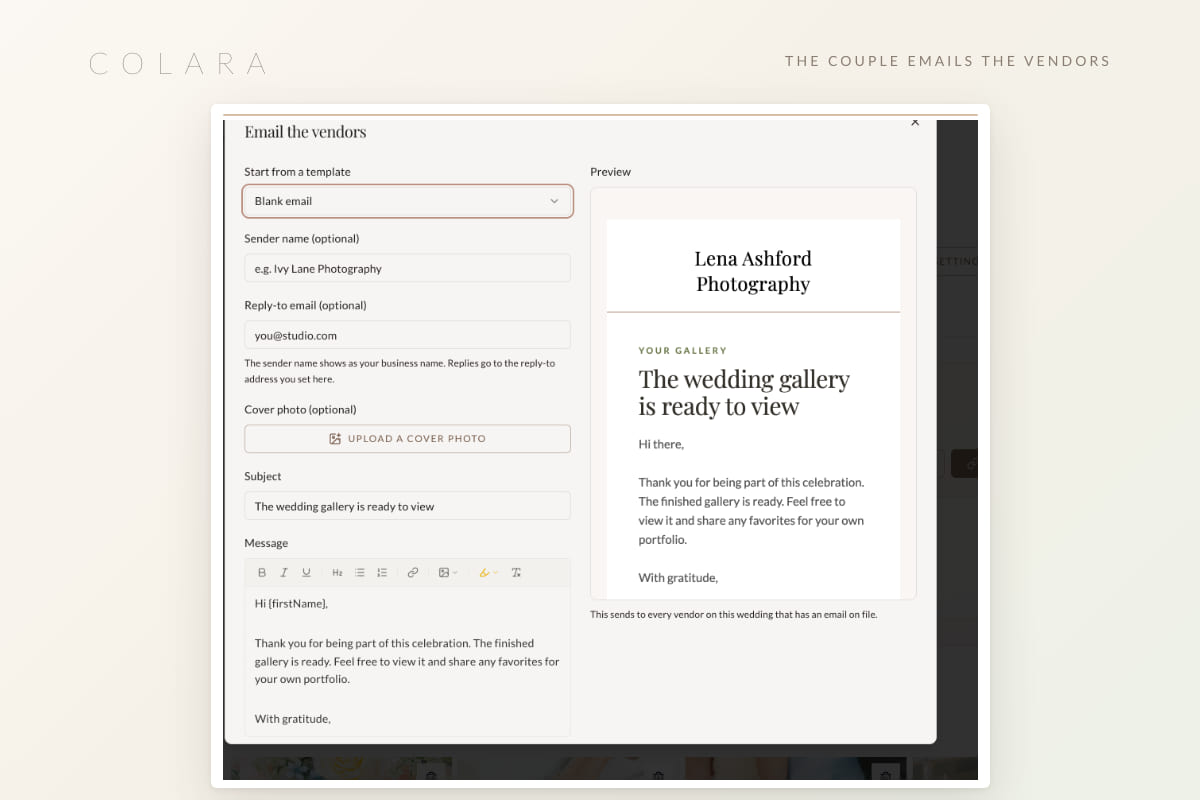
The couple can share it too. Their gallery has an Email the vendors button that uses the same saved list, so a couple who wants to thank the florist does not have to forward your email.
After you hit send
- Send history. Client activity shows who was sent the gallery and when, so nobody has to remember whether the venue got the link.
- Analytics. Visitors, downloads and hearts per gallery, with a CSV export.
- Workflows. A delivery can start a workflow: a thank-you note, a review request, a vendor follow-up.
- Extensions. Extend a closing gallery by 30 days, 90 days or a year, free or paid.
Storage, plans and your own domain
Galleries are on every photographer plan. The Free plan includes 3 GB of gallery storage, enough to learn the flow on a real wedding. Photographer Starter includes 1 TB of active storage plus 1 TB of archive. Photographer Unlimited has no storage cap under fair use.
Your own address. Connect a subdomain you own and new gallery and album proof links use your studio domain. Details on the pricing page, and the free CRM for wedding photographers explains what the Free plan includes beyond galleries. Comparing the whole stack? Read the best CRM for wedding photographers.
Frequently asked questions
How do I send a wedding gallery to vendors without typing their addresses?
Keep the vendors on the wedding record in your CRM. In Colara, Email gallery offers the wedding vendors as an audience, so one send reaches the planner, the florist, the venue and everyone else saved on that wedding.
Can vendors have different download permissions than the couple?
Yes. Create a separate vendor gallery with its own download policy and watermark, then deliver it to the vendor audience. The couple's gallery keeps its own rules.
Are my file names visible to clients?
File names are hidden in the viewer and kept on download, so the ZIP the couple receives matches your catalog and their favorites lists can be copied straight into Lightroom.
What if I add photographs after delivery?
Upload them to the same gallery and re-deliver. The couple's gallery card refreshes in place instead of duplicating, and the new photographs follow the existing access rules.
Do I need a paid plan to deliver galleries this way?
No. The Free plan includes 3 GB of gallery storage with the same delivery flow. Paid photographer plans add storage, your own subdomain and a store with no platform fee.
See a gallery delivered end to end
The photographer demo opens on a real wedding with a finished gallery, so you can send it to the couple and the vendors yourself.
Open the photographer demo